




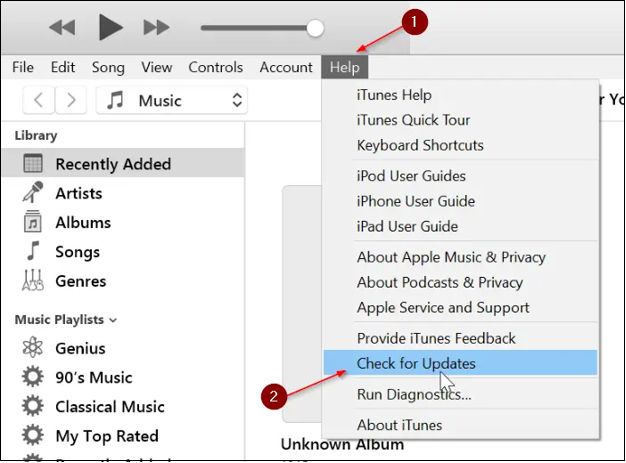
Windows'ta iTunes'u açın ve şuraya gidin:
Yardım → Güncellemeleri Kontrol Et
Mac'teyken, açın
Sistem Ayarları → Yazılım Güncellemesi
ve en son macOS sürümünü yükleyin.
iPhone 75 Hatası Nasıl Çözülür?
İçindekiler
iPhone'lar sorunsuz ve güvenilir bir kullanıcı deneyimi sunmak üzere tasarlanmıştır, ancak yazılım tabanlı her cihaz gibi, zaman zaman beklenmedik hatalarla karşılaşabilirler. Birçok kullanıcıyı hayal kırıklığına uğratan sorunlardan biri de genellikle iTunes veya Finder kullanılarak yapılan bir iOS güncellemesi veya geri yüklemesi sırasında ortaya çıkan iPhone Hata 75'tir. Hata mesajı genellikle şu şekildedir: “iPhone geri yüklenemedi. Bilinmeyen bir hata oluştu (75).”
Bu hatayla karşılaşmak, özellikle işlem sırasında iPhone'unuz takılıp kaldığında, yanıt vermediğinde veya kullanılamaz hale geldiğinde stresli olabilir. Birçok kullanıcı için, her şey daha önce sorunsuz çalışıyor gibi görünse bile, 75 numaralı hata aniden ortaya çıkar. Neyse ki, bu sorun genellikle donanım hasarı değil, yazılımla ilgili olup, doğru adımlarla genellikle düzeltilebilir.
Bu makalede, iPhone 75 hatasının neden oluştuğunu açıklayacak, etkili çözümleri adım adım anlatacak ve standart yöntemlerin çözemediği inatçı iOS sistem hataları için gelişmiş bir çözüm sunacağız.
1. iPhone'da 75 Hatası Neden Oluşur?
iPhone 75 hatasının nedenini anlamak, sorunu çözmenin ilk adımıdır. Bu hata genellikle, güncelleme veya geri yükleme işlemi sırasında iPhone'unuz, bilgisayarınız ve Apple sunucuları arasındaki iletişimin kesintiye uğradığı veya başarısız olduğu anlamına gelir. Aşağıda en yaygın nedenler verilmiştir:
1.1 Güncel olmayan iTunes veya macOS sürümü
Windows'ta iTunes'un veya Mac'te macOS Finder'ın eski bir sürümünü kullanıyorsanız, en son iOS yazılımını tam olarak desteklemeyebilir. Bu uyumluluk sorunu genellikle geri yükleme veya güncelleme hatalarına yol açar.
1.2 Bozuk veya Eksik iOS Firmware'i
Hasarlı veya kısmen indirilmiş bir IPSW aygıt yazılımı dosyası, iTunes veya Finder'ın geri yükleme işlemini tamamlamasını engelleyerek 75 numaralı hataya neden olabilir.
1.3 Güvenlik Yazılımı Müdahalesi
Güvenlik duvarları, antivirüs programları veya VPN'ler, iTunes veya Finder'ın Apple sunucularına erişimini engelleyerek doğrulamanın başarısız olmasına neden olabilir.
1.4 USB Bağlantı Sorunları
Arızalı bir kablo, USB hub veya kararsız bir bağlantı noktası kullanmak, güncelleme veya geri yükleme sırasında iPhone'unuz ve bilgisayarınız arasındaki veri aktarımını kesintiye uğratabilir.
1.5 iOS Sistem Hataları
Özellikle büyük iOS güncellemelerinden sonra, altta yatan sistem hataları, başarısız güncellemeler veya bozuk iOS dosyaları da iPhone Hata 75'e neden olabilir.
2. iPhone 75 Hatası Nasıl Çözülür?
Aşağıda, temel çözümlerden başlayarak daha gelişmiş yöntemlere doğru ilerleyen, kanıtlanmış çözümler yer almaktadır.
2.1 iTunes veya macOS'u güncelleyin
Her zaman en güncel yazılımı kullandığınızdan emin olun:
Bu, mevcut iOS yazılımıyla tam uyumluluk sağlar.
2.2 USB Kablonuzu ve Bağlantı Noktanızı Kontrol Edin
Bağlantı sorunları, 75 numaralı hatanın şaşırtıcı derecede yaygın bir nedenidir:
- Orijinal Apple USB kablosunu kullanın.
- Doğrudan bilgisayarınıza takın (USB hub'larından kaçının).
- Farklı bir USB bağlantı noktası deneyin
- Mümkünse, başka bir kablo deneyin.
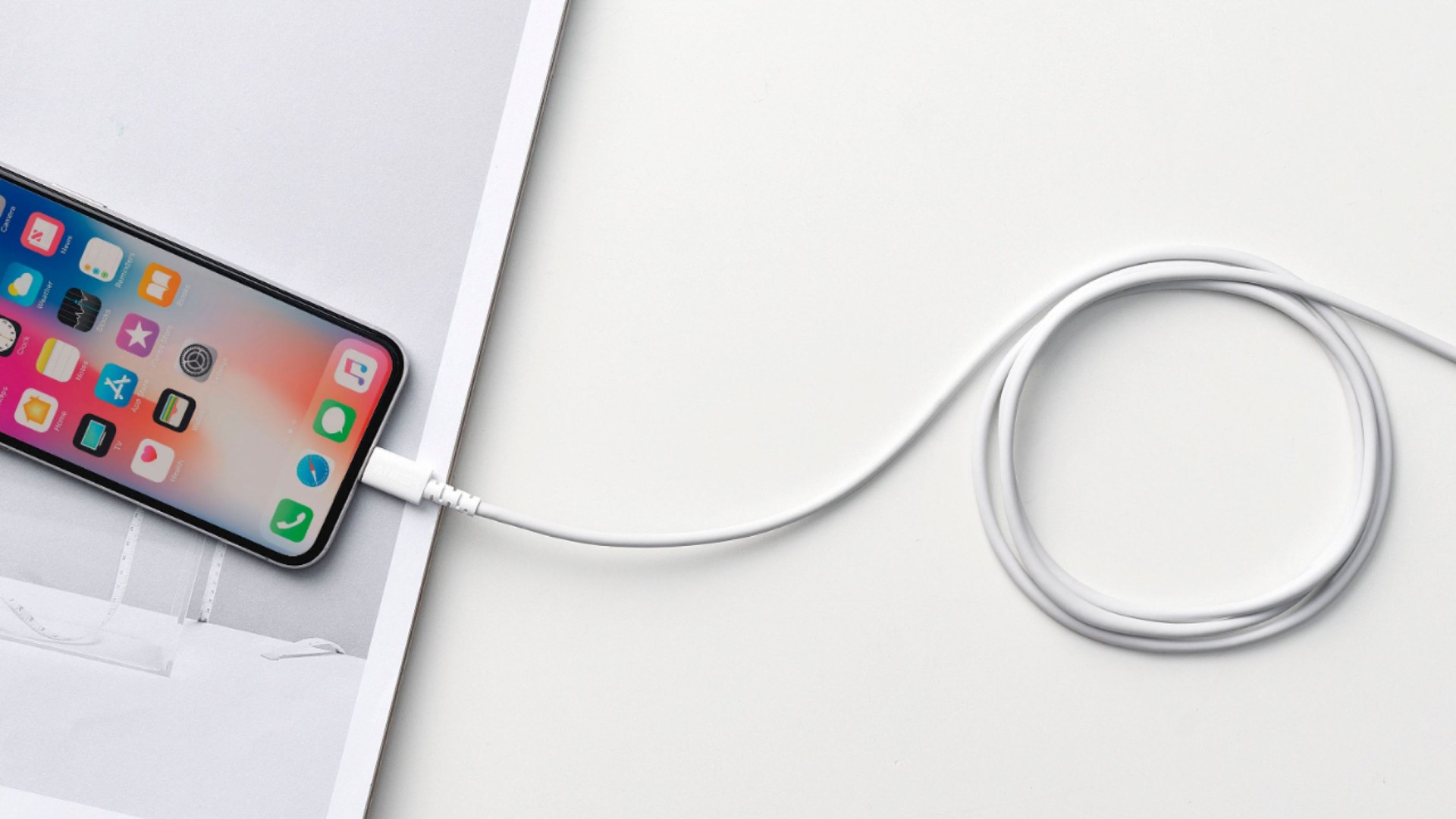
iOS'u geri yüklemek veya güncellemek için istikrarlı bir bağlantı şarttır.
2.3 Antivirüs Programını, Güvenlik Duvarını veya VPN'i Geçici Olarak Devre Dışı Bırakma
Güvenlik yazılımları Apple sunucularıyla iletişimi engelleyebilir:
- Virüs koruma ve güvenlik duvarı yazılımlarını geçici olarak devre dışı bırakın.
- Aktif olan tüm VPN'leri kapatın.
- Güncelleme veya geri yükleme işlemini yeniden deneyin.
- İşlem tamamlandıktan sonra korumayı yeniden etkinleştirin.
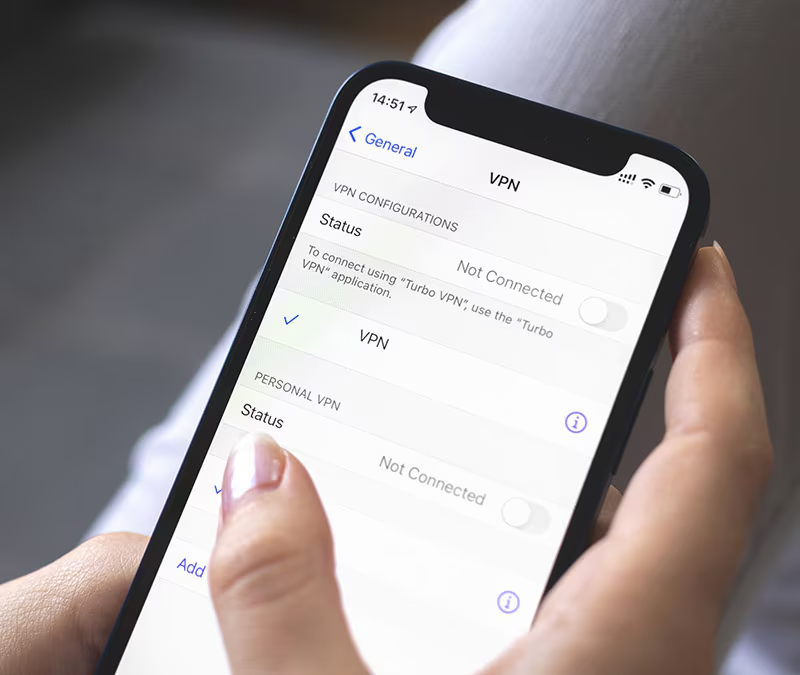
Bu adım tek başına birçok kullanıcı için 75 numaralı hatayı çözüyor.
2.4 iPhone'unuzu ve Bilgisayarınızı Yeniden Başlatın
Basit yeniden başlatmalar geçici sistem çakışmalarını giderebilir:
- Bilgisayarınızı yeniden başlatın.
- iPhone'unuzu zorla yeniden başlatma: iPhone'unuzu zorla yeniden başlatmak için, iPhone 8 veya sonraki modellerde Ses Açma düğmesine, ardından Ses Kısma düğmesine basın ve Yan düğmeyi basılı tutun; iPhone 7/7 Plus'ta Ses Kısma ve Yan düğmeleri birlikte basılı tutun; iPhone 6s veya önceki modellerde ise Ana Ekran ve Güç düğmelerini aynı anda basılı tutun.
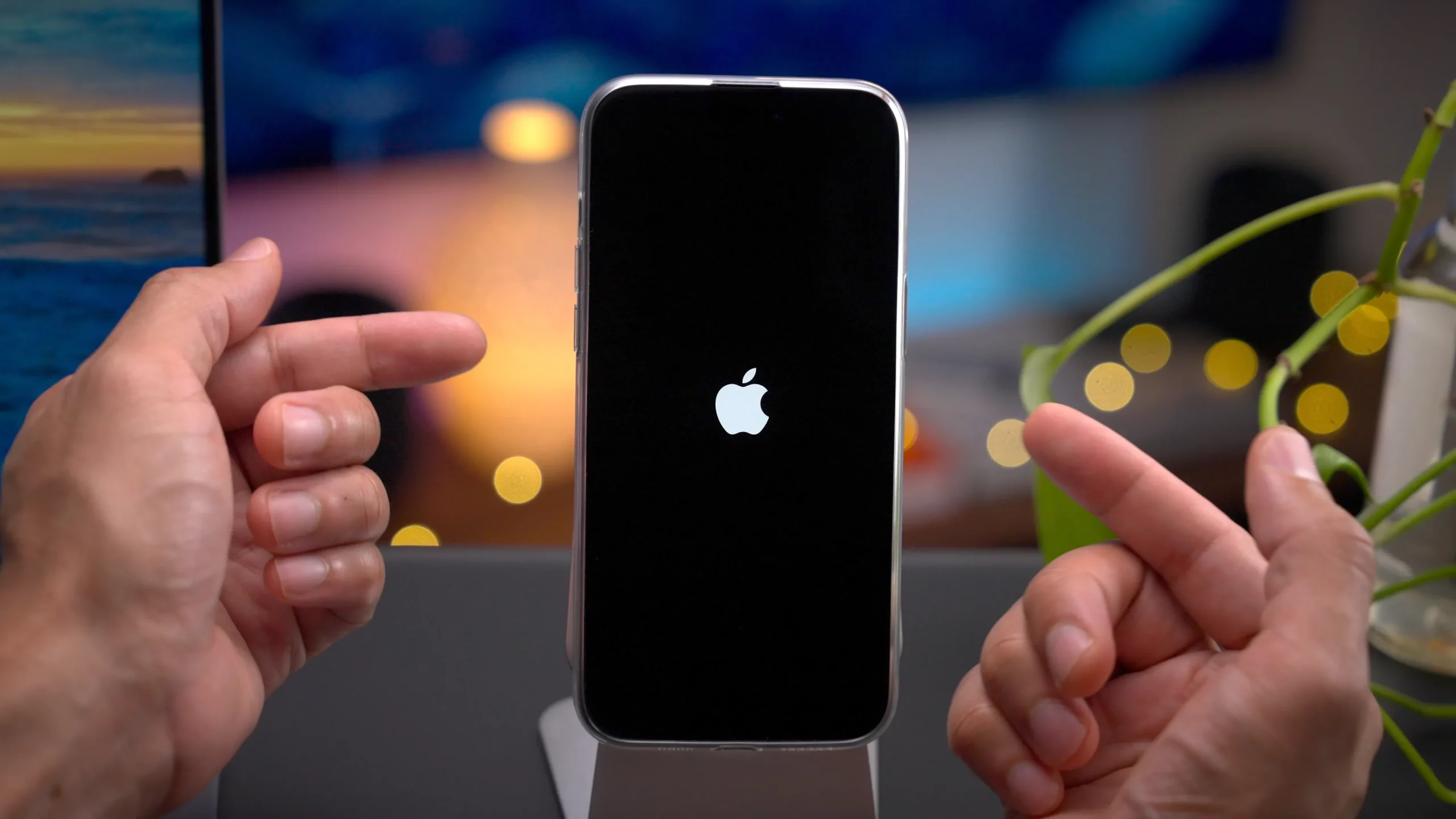
Ardından iPhone'unuzu yeniden bağlayın ve tekrar deneyin.
2.5 Kurtarma Modunu Kullanma
Normal geri yükleme başarısız olursa, Kurtarma Modu yardımcı olabilir:
- iPhone'unuzu bilgisayara bağlayın.
- Kurtarma ekranı görünene kadar zorla yeniden başlatın.
- İstenildiğinde, önce Güncelle'yi seçin.
- Güncelleme başarısız olursa, Geri Yüklemeyi deneyin.
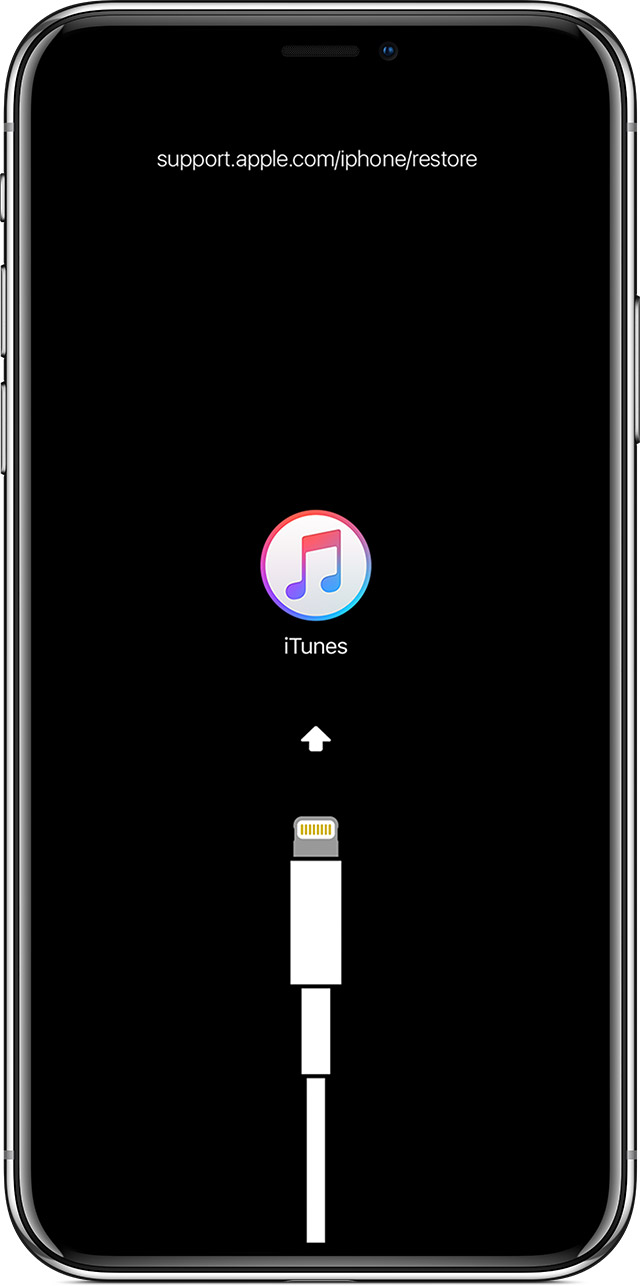
Kurtarma Modu, (Güncelleme seçeneği seçildiğinde) verileri hemen silmeden iOS'u yeniden yükler.
2.6 DFU Modu Kullanarak iPhone'u Geri Yükleme
DFU (Cihaz Yazılım Güncellemesi) modu, mevcut iOS sistemini atlayan daha kapsamlı bir geri yükleme yöntemidir:
- Bu özellik, iTunes veya Finder'ın aygıt yazılımını sıfırdan yeniden yüklemesine olanak tanır.
- Özellikle sürekli tekrarlanan 75 numaralı hata sorunları için kullanışlıdır.
- Not: DFU geri yükleme işlemi tüm verileri siler.
Bu yöntem etkili olmakla birlikte, teknik bilgisi olmayan kullanıcılar için karmaşık ve riskli olabilir.
3. Gelişmiş Düzeltme: AimerLab FixMate ile iOS Sistem Hatalarını Onarma
iPhone'da 75 hatası tüm standart çözümlere rağmen tekrar tekrar ortaya çıkıyorsa, sorun genellikle ciddi sistem bozulmasından kaynaklanır. Bu durumda, AimerLab FixMate gibi profesyonel bir onarım aracı en güvenli ve etkili çözümdür.
AimerLab FixMate iTunes veya Finder'a bağımlı kalmadan iOS sistem sorunlarını gidermek için tasarlanmıştır. Şu gibi sorunları çözebilir:
- iPhone Hata 75
- iPhone kurtarma veya DFU modunda takılı kaldı.
- Güncelleme ve geri yükleme hataları
- Yeniden başlatma döngüsü, siyah ekranlar ve donmuş iPhone'lar
iPhone Hata Kodu 75'i FixMate ile Nasıl Düzeltilir:
- AimerLab FixMate'i bilgisayarınıza indirin ve kurun.
- iPhone'unuzu USB kablosu kullanarak bağlayın, ardından Standart Onarım'ı (veri kaybı olmadan sorunları giderir) seçin.
- FixMate cihazınızı algılayacak ve doğru yazılımı indirecektir.
- "Onarımı Başlat" seçeneğine tıklayın ve işlemin tamamlanmasını ve iPhone'unuzun yeniden başlatılmasını bekleyin.
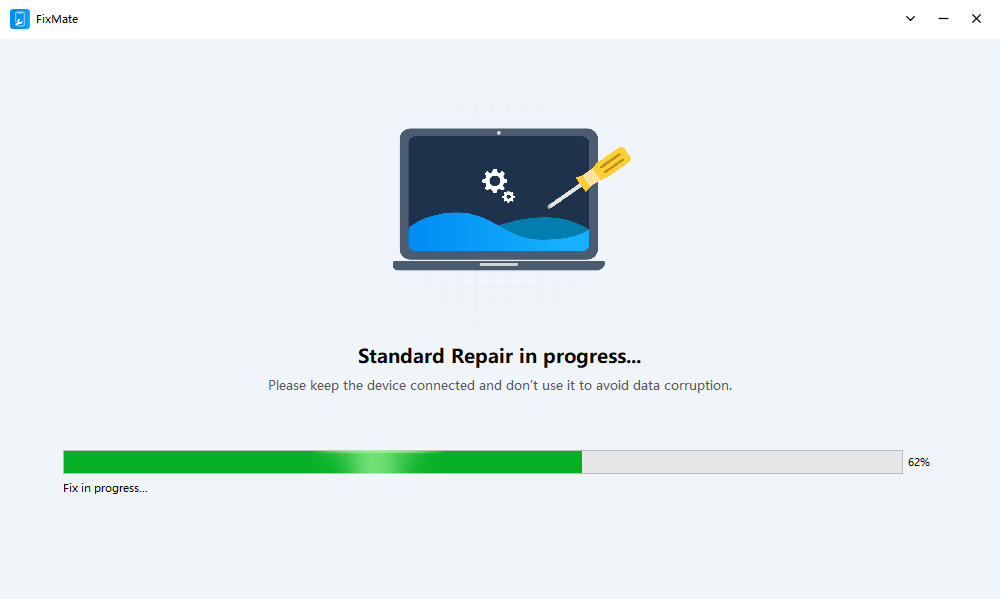
Manuel DFU geri yüklemelerinin aksine, FixMate teknik adımları otomatik olarak halleder ve bu da hata veya veri kaybı riskini önemli ölçüde azaltır.
4. Sonuç
iPhone 75 hatası genellikle eski yazılımlar, bozuk aygıt yazılımı, bağlantı sorunları veya daha derin iOS sistem aksaklıkları nedeniyle oluşur. Çoğu durumda, iTunes veya macOS'u güncelleyerek, USB bağlantılarını kontrol ederek, güvenlik yazılımını devre dışı bırakarak veya Kurtarma Modunu kullanarak çözülebilir.
Ancak bu yöntemler başarısız olduğunda, en güvenilir ve stressiz çözüm AimerLab FixMate'tir. Güçlü iOS onarım teknolojisi, karmaşık adımlar veya gereksiz veri kaybı olmadan sistem düzeyindeki hataları düzeltir. Hızlı, güvenli ve profesyonel bir çözüm isteyen kullanıcılar için FixMate en iyi öneridir.
Kullanarak
AimerLab FixMate
Bu sayede iPhone 75 hatasını etkili bir şekilde çözebilir ve cihazınızı tekrar tekrar başarısız kurulum denemeleri veya Apple Store ziyaretleri olmadan normal çalışma durumuna geri döndürebilirsiniz.
Sıcak Makaleler
- iPhone iOS 18'de Şifreler Nasıl Bulunur?
- iPhone'um neden çalmıyor? İşte sorunu çözmek için etkili çözümler.
- "iPhone'umu Bul" hatası nasıl düzeltilir?
- Uçak Modu iPhone'da Konum özelliğini kapatır mı?
- iPhone'da Birinin Konumu Nasıl İstenir?
- "iPhone Güncellenemedi. Bilinmeyen Bir Hata Oluştu (7)" Hatası Nasıl Düzeltilir?
Daha fazla okuma
- iPhone'da Pokemon Go Sahtekarlığı Nasıl Yapılır?
- Aimerlab MobiGo GPS Konum Sahtekarlığına Genel Bakış
- iPhone'unuzda Konum Nasıl Değiştirilir?
- İOS için En İyi 5 Sahte GPS Konum Sahtekarlığı
- GPS Konum Bulucu Tanımı ve Sahtekarlık Önerisi
- Snapchat'ta Konumunuzu Nasıl Değiştirirsiniz?
- İOS cihazlarda Konum Nasıl Bulunur/Paylaşır/Gizlenir?